To deactivate drivers in the PriceLOCQ for Business fleet portal, kindly follow these steps:
Step 1: In your portal, navigate to My Fleet Activity, then click Drivers.
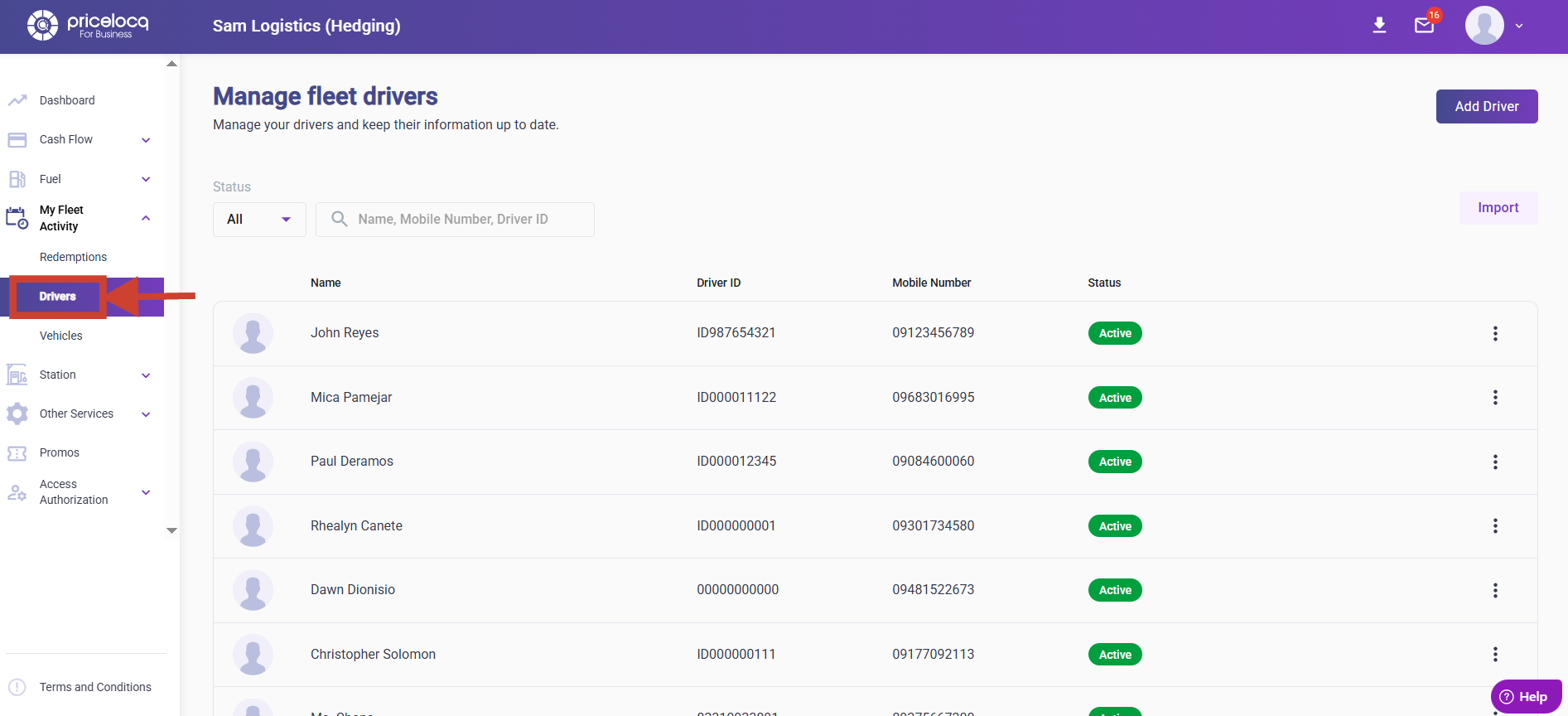
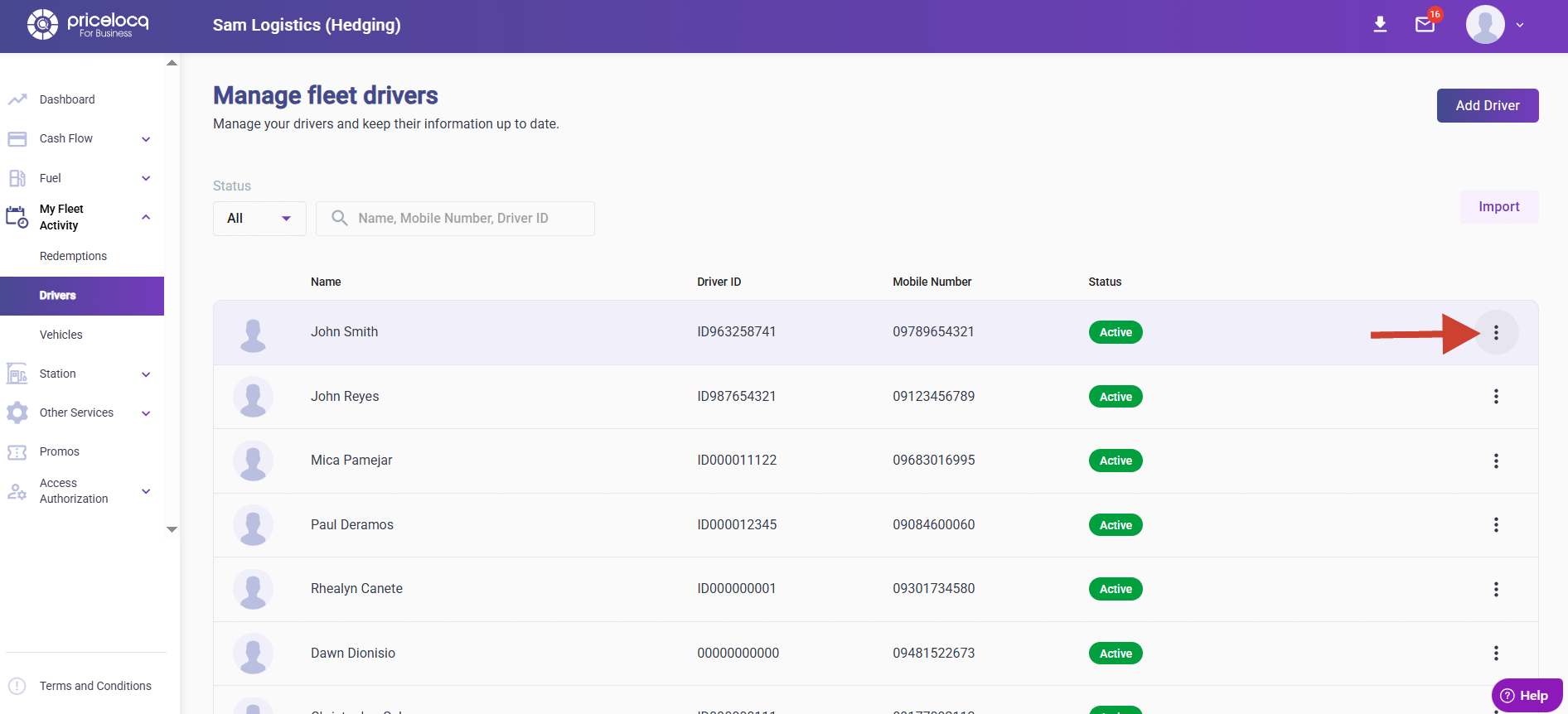
Step 2: Locate or search the driver you want to deactivate, then click the three dots (⋮) on the right side of the record.
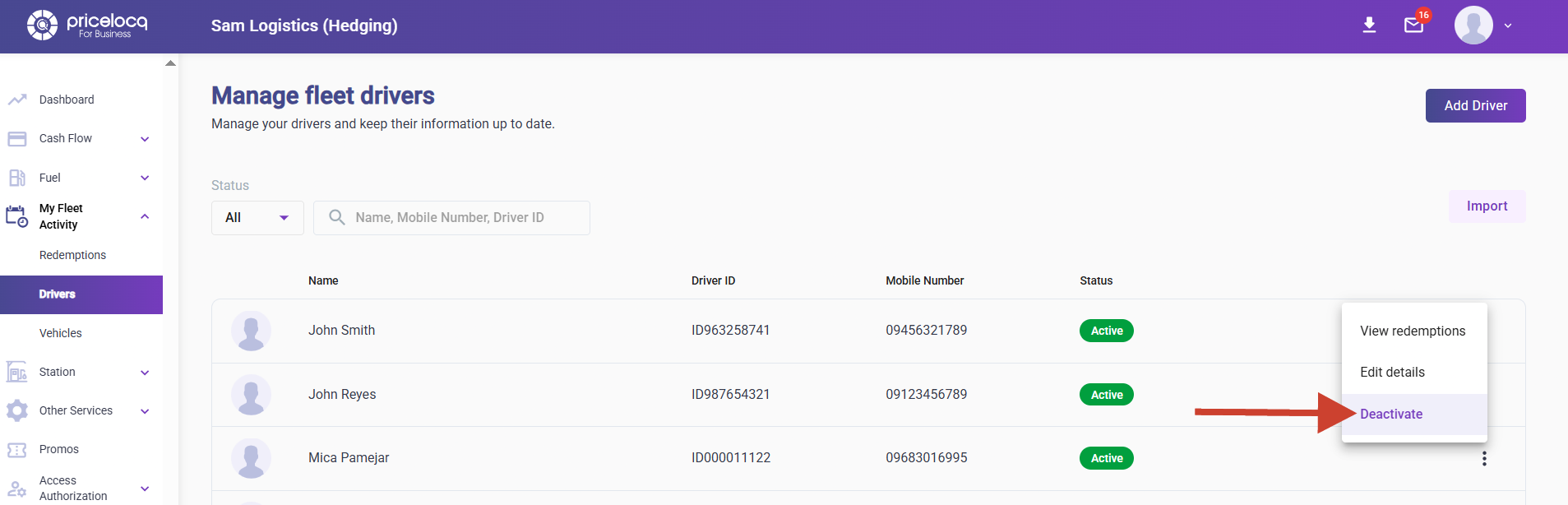
Step 3: Click Deactivate.
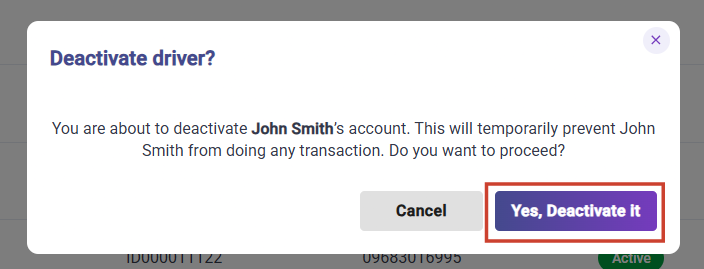
Step 4: Click Yes, Deactivate It to confirm.
Note: For Hedging accounts, once a driver is deactivated, they will no longer appear in the driver dropdown list when creating fuel codes. Any existing fuel codes assigned to the deactivated driver will also be automatically deactivated.
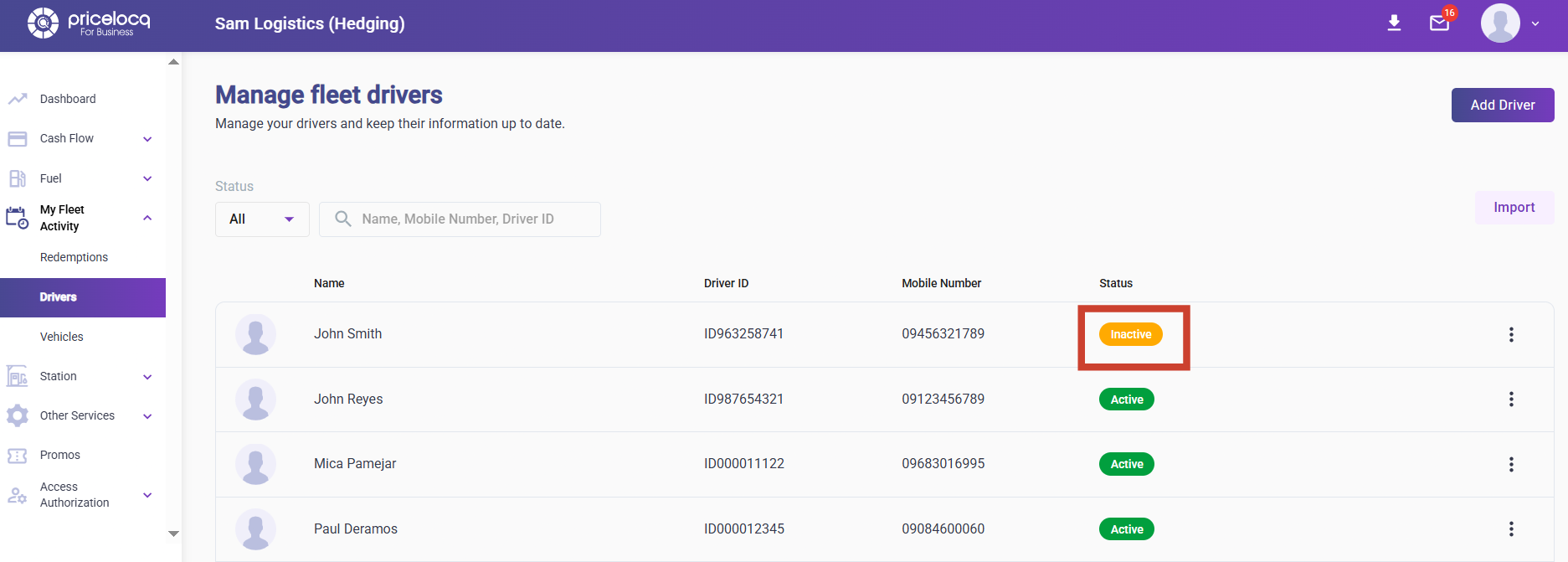
Note: To reactivate a driver, click the three dots (⋮) menu for the driver and select Reactivate.
However, for Hedging accounts, reactivating a driver will not automatically reactivate the fuel codes previously assigned to that driver. Those fuel codes will remain deactivated
For any inquiries or concerns, kindly reach out to your respective Account Managers or email us at plb-support@locq.com.
Note: Please ensure that your Account Manager is copied (cc’d) in your email when reaching out to our support team.
Was this article helpful?
That’s Great!
Thank you for your feedback
Sorry! We couldn't be helpful
Thank you for your feedback
Feedback sent
We appreciate your effort and will try to fix the article