To edit vehicles in the PriceLOCQ for Business fleet portal, kindly follow these steps:
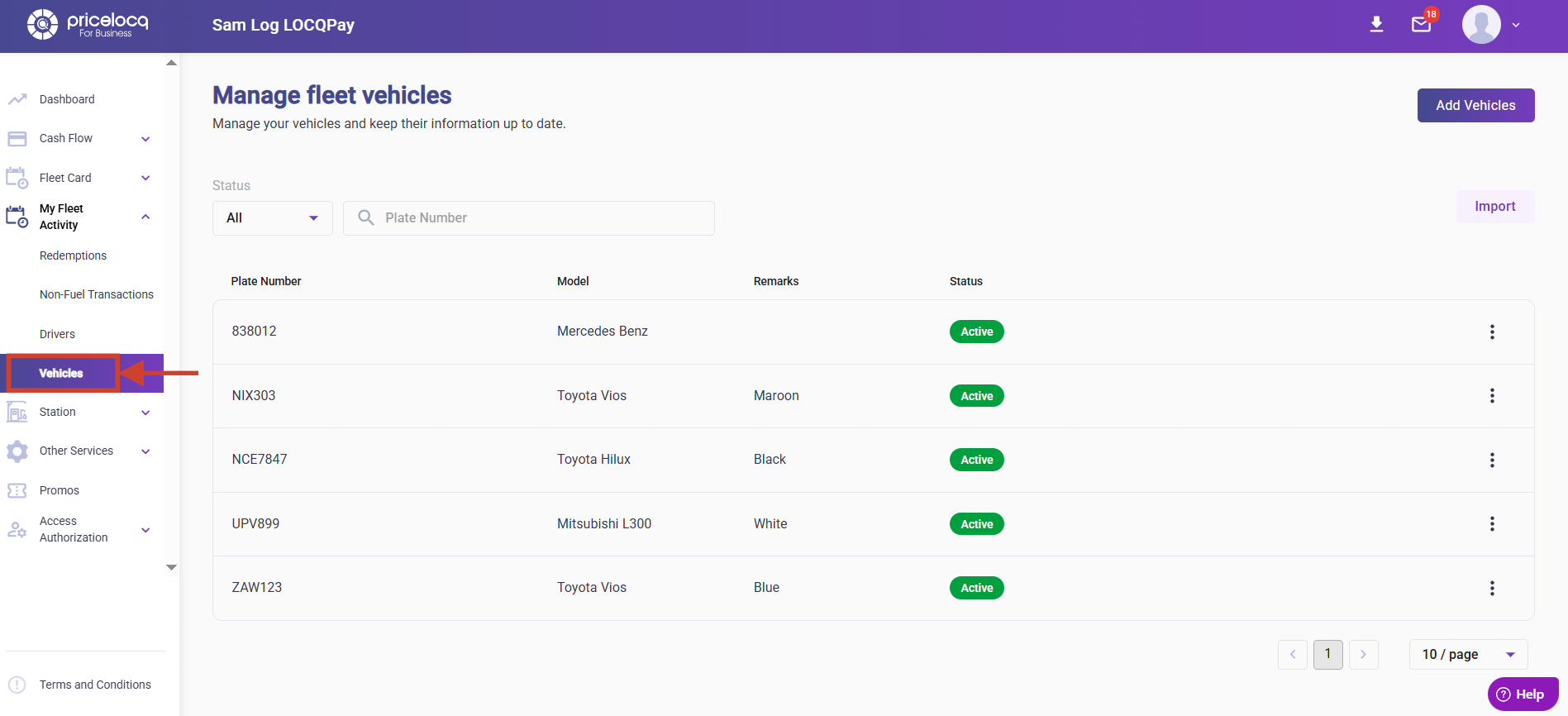
Step 1: In your portal, navigate to My Fleet Activity, then click Vehicles.
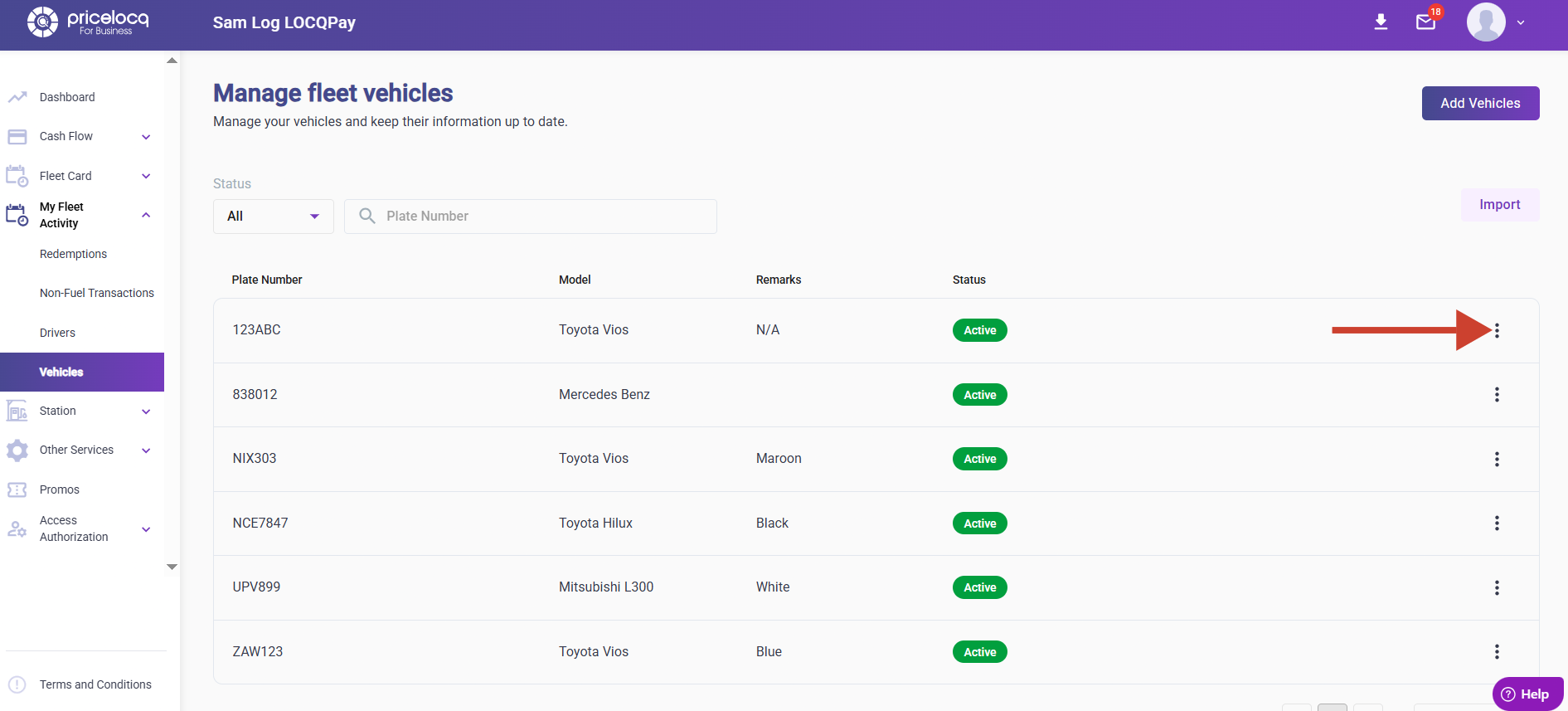
Step 2: Locate or search the vehicle (plate number) you want to update, then click the three dots (⋮) on the right side of the record.
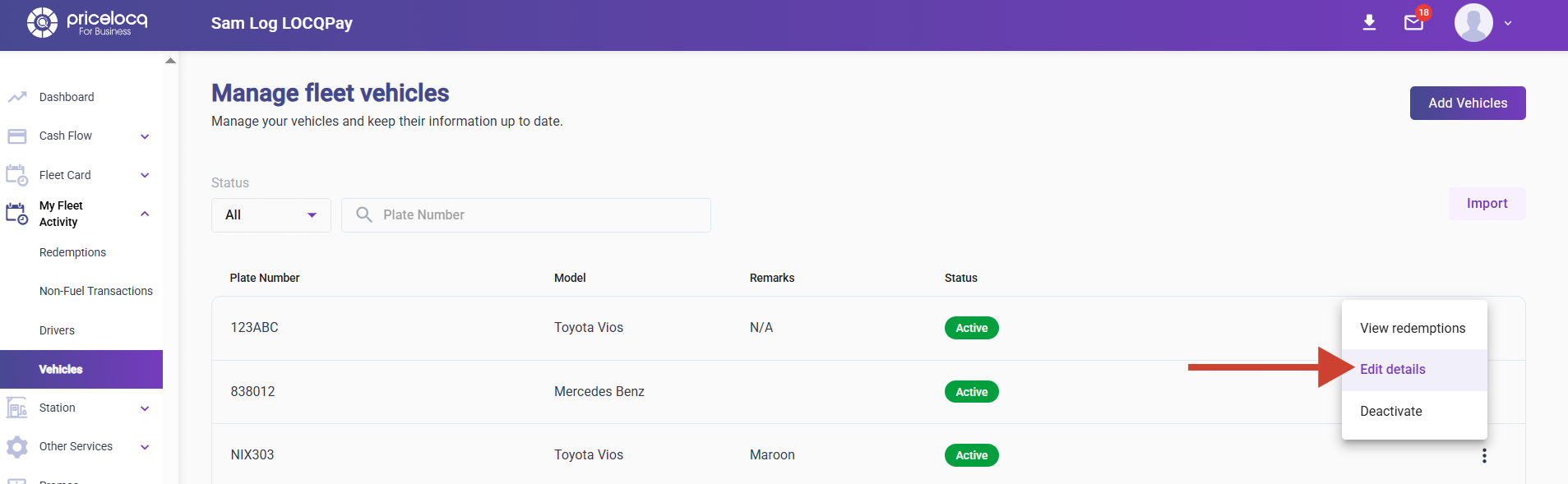
Step 3: Click Edit Details.
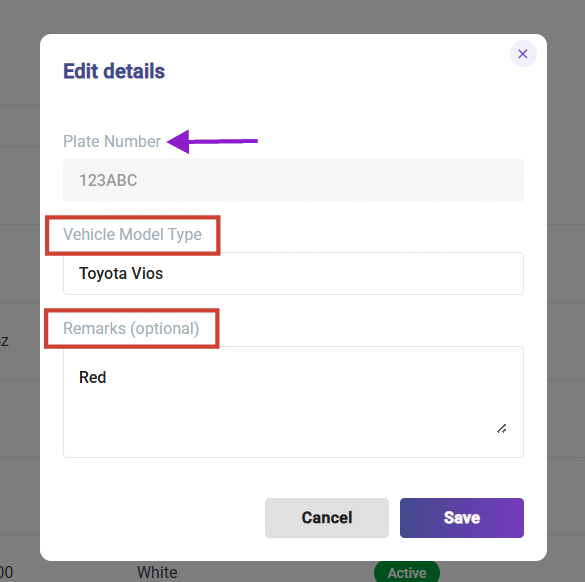
Step 4: Update the vehicle's Vehicle Model Type and Remarks (optional) as needed.
Note: The Plate Number cannot be edited. If you need to change the Plate Number, create a new vehicle entry using "Add Vehicles."
Step 5: Click Save. 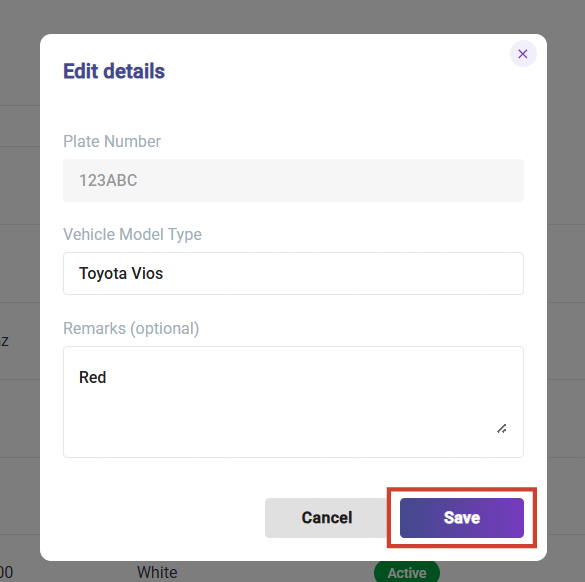
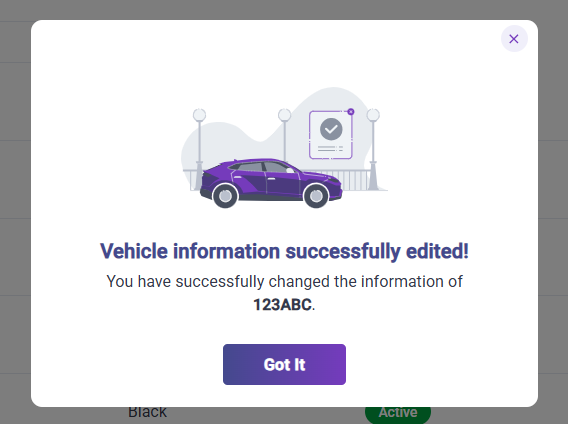
Step 6: A confirmation message will appear once the vehicle's information has been updated successfully.
For any inquiries or concerns, kindly reach out to your respective Account Managers or email us at plb-support@locq.com.
Note: Please ensure that your Account Manager is copied (cc’d) in your email when reaching out to our support team.
Was this article helpful?
That’s Great!
Thank you for your feedback
Sorry! We couldn't be helpful
Thank you for your feedback
Feedback sent
We appreciate your effort and will try to fix the article