After redeeming your VIP Points through your Fleet portal, the corresponding peso amount will be credited only after verification. The steps below outline the full process for VIP Redemption crediting.
Step 1: Send or share a screenshot of your Cash-In History (showing the Cash-In ID and Amount) with your SEAOIL Account Manager.
Sample 1:
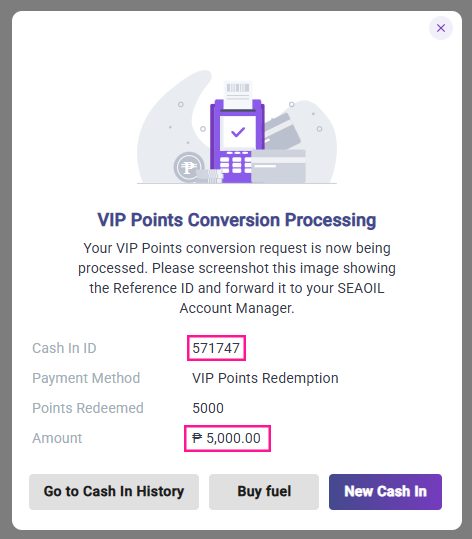
Sample 2:

Step 2: Your SEAOIL account manager will request for the VIP Redemptions History Report to LOCQ.
Step 3: LOCQ will provide the requested report to your SEAOIL Account Manager within 3 business days.
Step 4: Your SEAOIL Account Manager will process and file a manual credit request for Department Head’s approval.
Step 5: SEAOIL Finance team receives and validates the Cash-In Amount. (This step takes up to 10 working days)
Step 6: Once validated, SEAOIL Finance Team will send a Crediting Request to LOCQ.
Step 7: LOCQ will credit the amount to your Peso Balance within 1 business day upon receipt of the request.
Step 8: Once the crediting is complete, LOCQ will notify your respective SEAOIL Account Manager
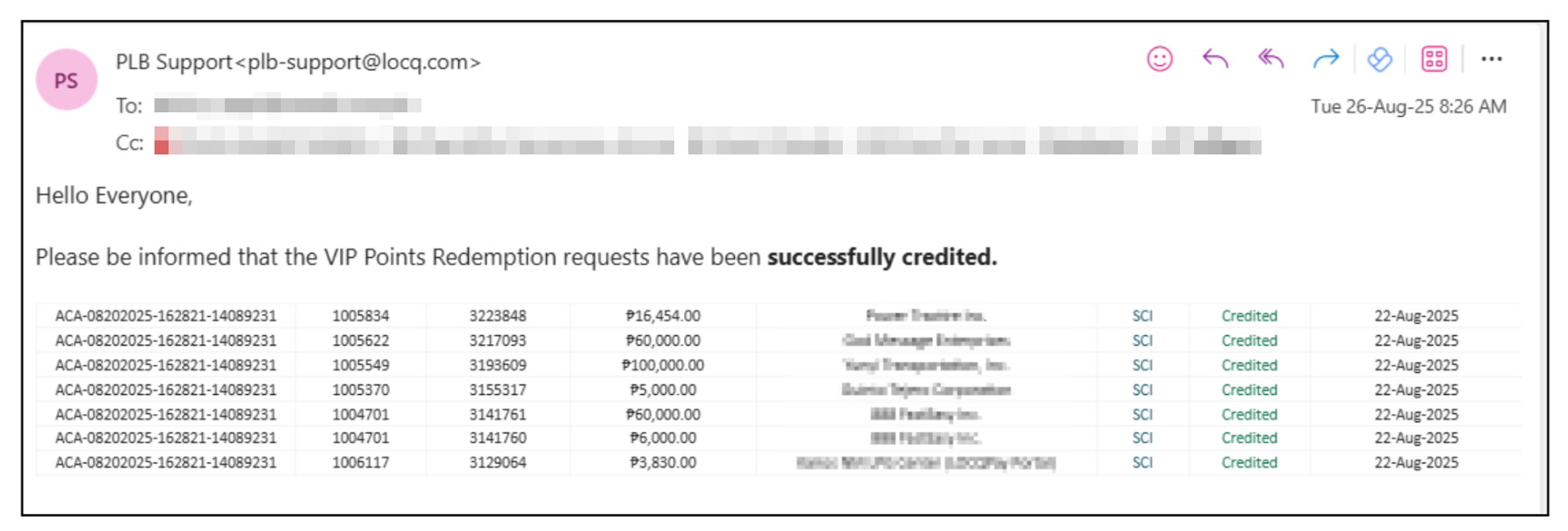
Step 9: You will receive an e-receipt in your registered email once your VIP redemptions have been successfully credited.
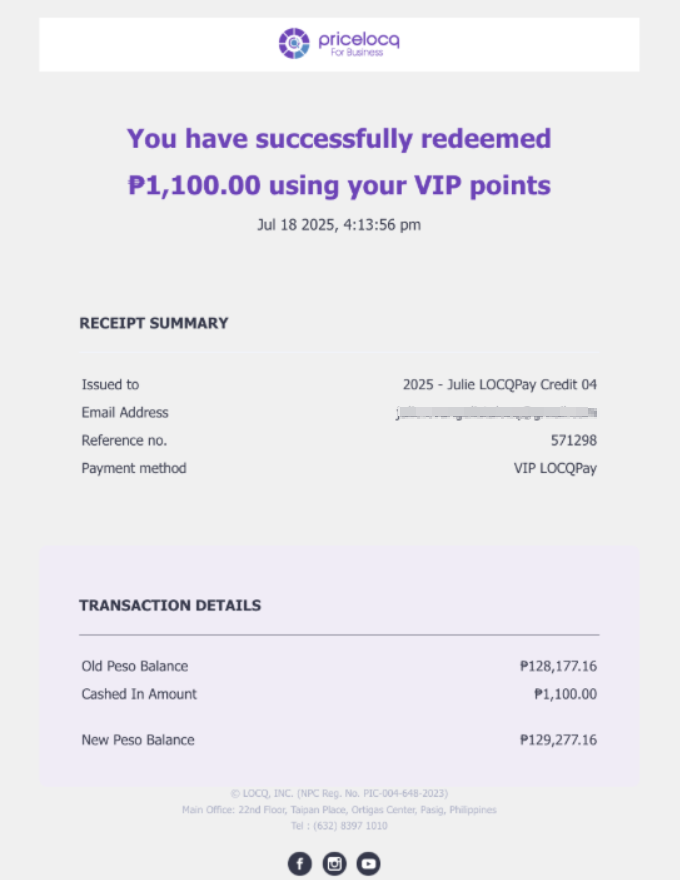
Note: After receiving the e-receipt, we recommend checking your Peso Balance to confirm that the credited amount has been reflected.
Alternatively, you may also check the Cash In History page on your portal. You can search using the Cash In ID. The status should appear as Completed, and the Fulfilled Date will indicate when the amount was reflected in their peso balance.
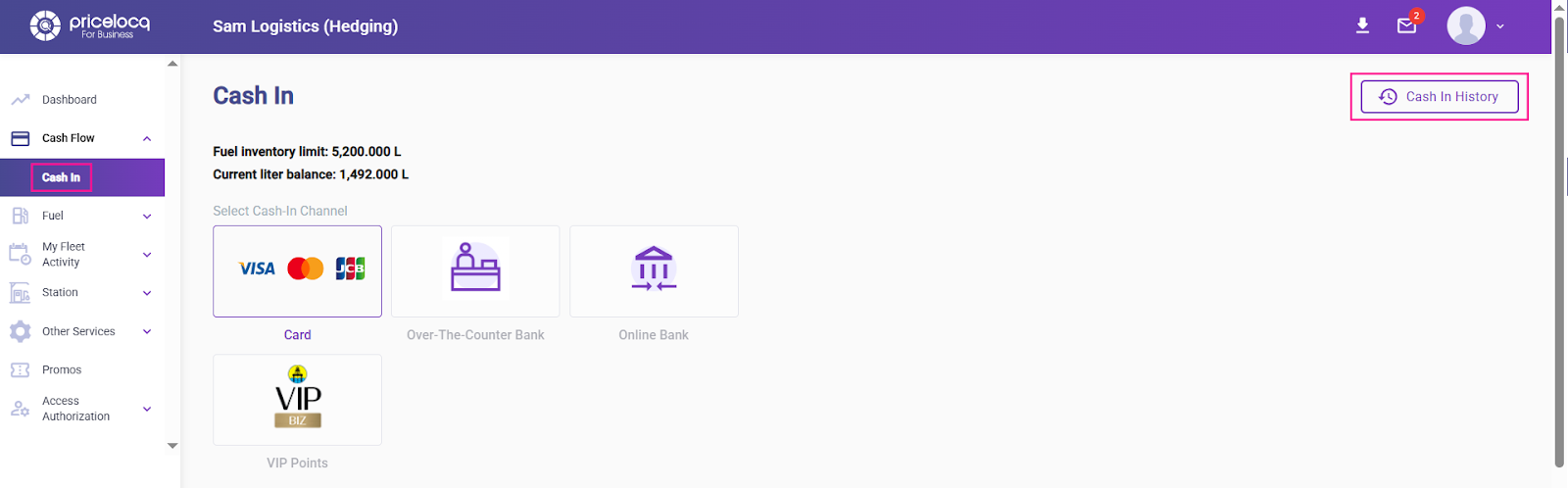
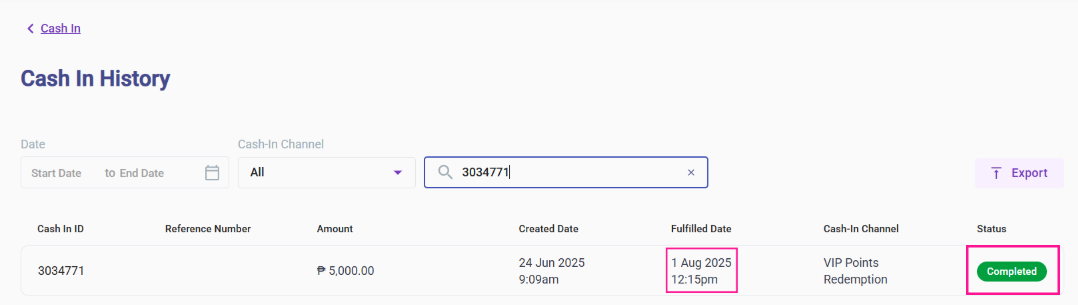
If the status still appears as Pending after confirmation, please inform your SEAOIL account manager so they can escalate the matter to LOCQ for further review.
Expected Timeline: The overall process may take an average of 3 to 4 business weeks.
For any inquiries or concerns, kindly reach out to your respective Account Managers or email us at plb-support@locq.com.
Note: Please ensure that your Account Manager is copied (cc’d) in your email when reaching out to our support team.
Was this article helpful?
That’s Great!
Thank you for your feedback
Sorry! We couldn't be helpful
Thank you for your feedback
Feedback sent
We appreciate your effort and will try to fix the article