You can top up your wallet using the Over-the-Counter Bank option in the PriceLOCQ for Business fleet portal by following these steps:
STEP 1: In your portal, navigate to Cash Flow, then click Cash In.
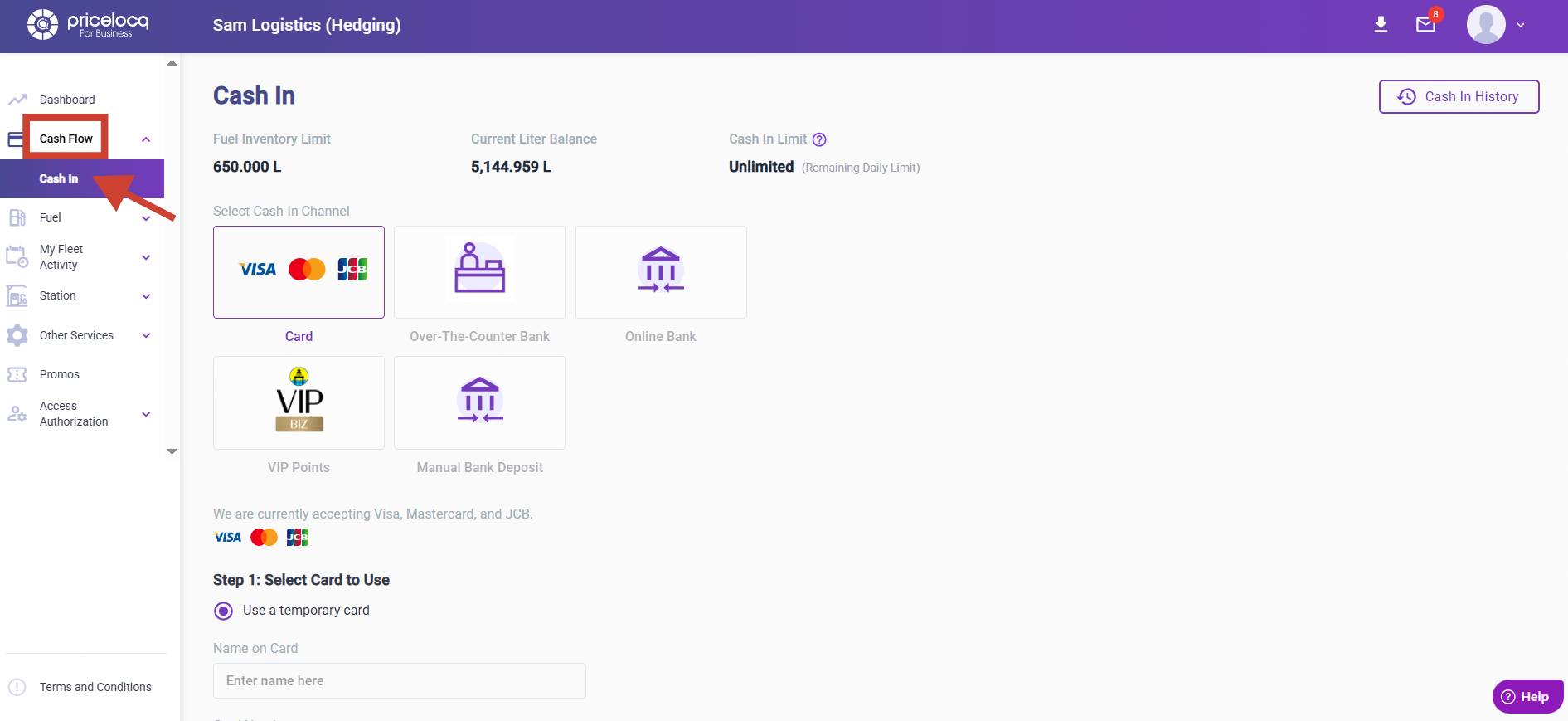
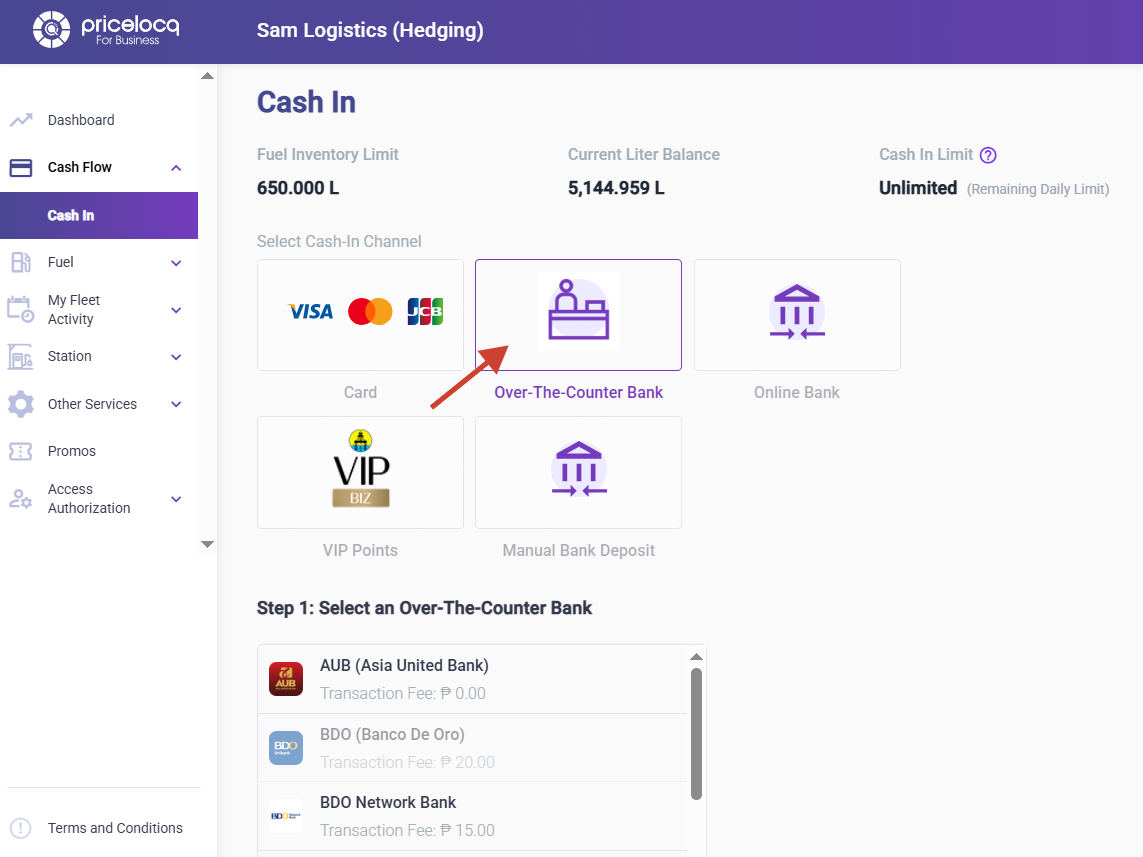
STEP 2: Select Over-The-Counter Bank.
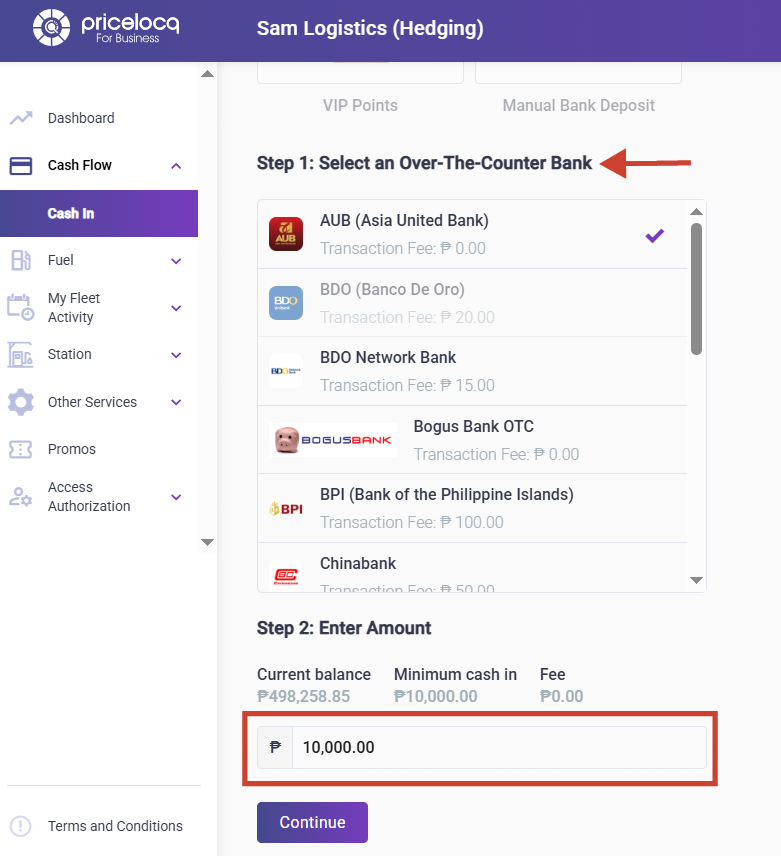
STEP 3: Choose your preferred bank and enter the amount to cash in.
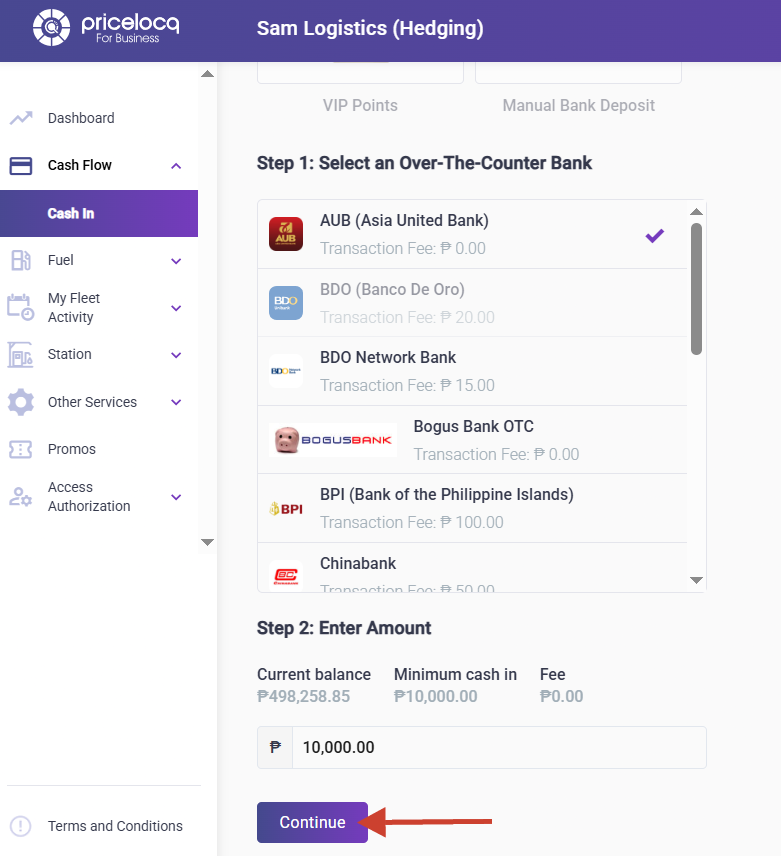
STEP 4: Click Continue and wait for the page to load and process your transaction.
STEP 5: A notification will appear confirming that the payment instructions (Dragonpay) have been sent to your email address. A corresponding Cash In ID with a Pending status will also be generated, which you can check on the Cash In History page.
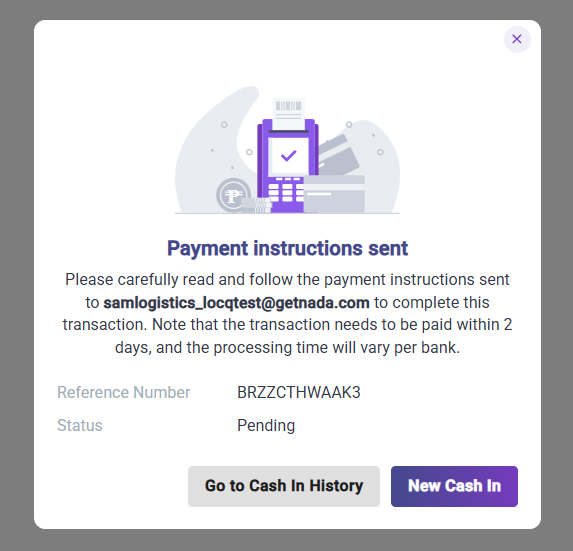

STEP 6: After completing the over-the-counter deposit, the bank will validate the payment. Please note that validation time depends on the bank’s processing policy. Once validated, the Cash In ID status will change to Success.
Note: If there are issues with the deposit, Dragonpay will contact you via email for further coordination.
If your deposit is still not reflected after 2 business days from the deposit date, please contact your SEAOIL Account Manager and provide the Cash In ID along with a copy of the deposit slip. They will coordinate with the PriceLOCQ for Business (PLB) support team for further checking and coordination with Dragonpay.
For any inquiries or concerns, kindly reach out to your respective Account Managers or email us at plb-support@locq.com.
Note: Please ensure that your Account Manager is copied (cc’d) in your email when reaching out to our support team.
Was this article helpful?
That’s Great!
Thank you for your feedback
Sorry! We couldn't be helpful
Thank you for your feedback
Feedback sent
We appreciate your effort and will try to fix the article